File attachments on NabuLinks card buttons
A bio-link card button can now carry a file instead of a URL — a PDF, an image or a document up to 12 MB — and the customer downloads it straight from the card's public page, with no sign-in and no third-party host in between.
Product update 2 min read
What changed
Until now, every button on a bio-link card pointed at a web address. If what you wanted to hand a customer was a file — a service catalogue, a price list, a brochure — you had to upload it somewhere else first and paste that link onto the card: one more service to keep alive, a link that can break, and too often a sign-up wall between the customer and the file.
A button can now hold the file itself: a PDF, an image or a document up to 12 MB. The customer downloads it from the card's public page, right where the button sits — no account, no sign-in.
How to use it
- In the sidebar, open More sections → Marketing and website → Website, then the Digital catalogue (NabuLinks) tab.
- No card yet? Fill in Card / brand title and Custom address (username/slug) and press Build the bio link and digital catalogue.
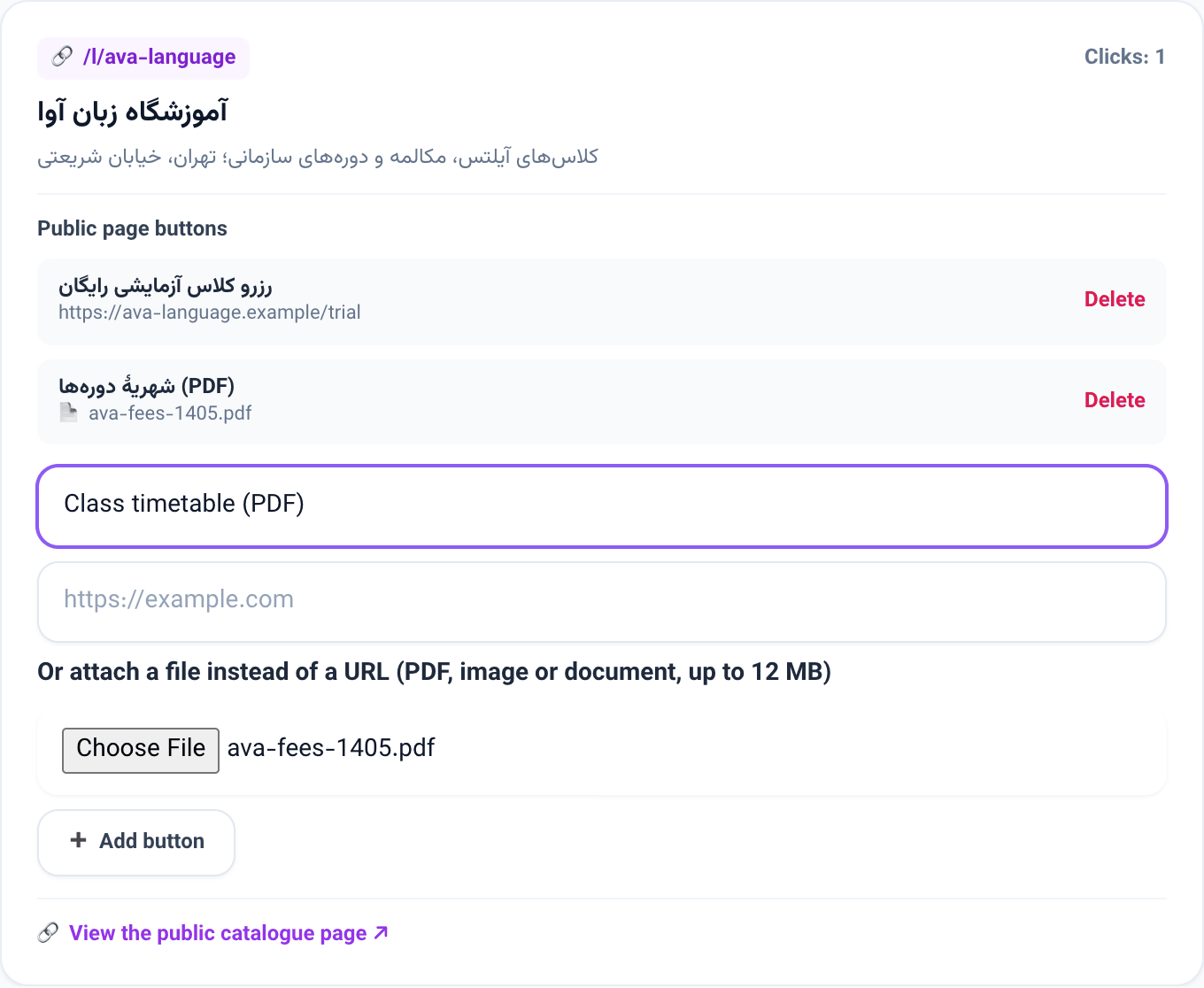
- On the card, under Public page buttons, type the button title — for example "Course fees (PDF)".
- Leave the web address empty and choose the file under Or attach a file instead of a URL (PDF, image or document, up to 12 MB).
- Press Add button. The button joins the list with its file name.
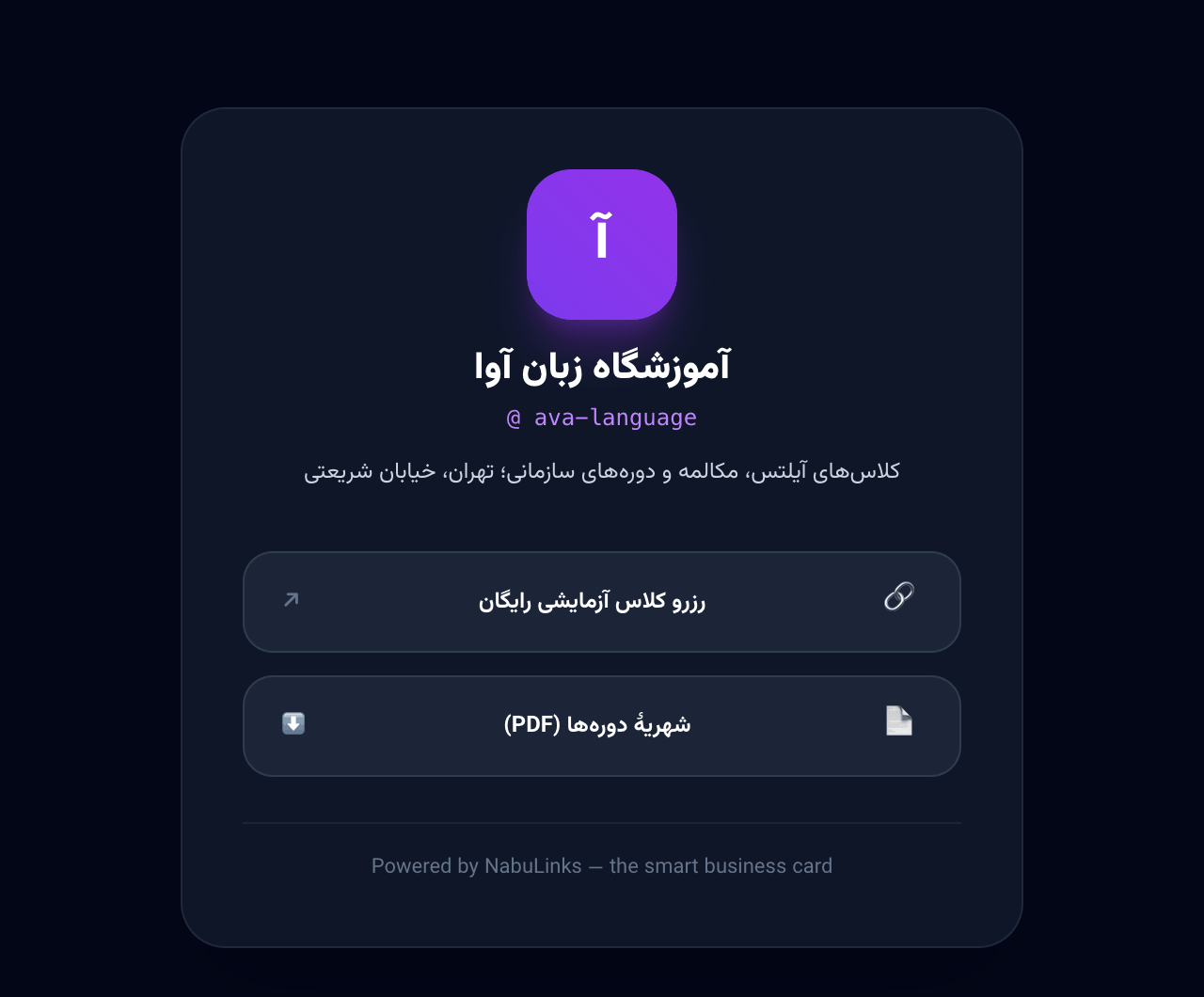
- Use View the public catalogue page to see what customers see: the file button carries a download mark.
Good to know
- A button is either a link or a file, never both; fill in both and the panel asks you to leave one empty.
- Accepted files: PDF, JPG, PNG, WebP, Word, Excel, CSV and TXT, up to 12 MB.
- The download address is tied to the card: each file opens only from the page of the card that carries it.
- Deleting a button deletes its file, and deleting a card removes all of its files.