Approve ChatGPT and Claude requests in NabuOS and Telegram
Changes ChatGPT or Claude asks to make now wait on the chat console page, and the link they give opens that request. The Telegram bot reads /approve_N with words after it. If you choose, the connect screen lets ChatGPT's own confirmation be the check.
Product update 3 min read
What changed
When ChatGPT or Claude asks NabuOS to do something that changes data, such as creating a task or editing a project, nothing runs until you approve it, and the reply says "Waiting for approval". Until now those requests were filed only in the "MCP" conversation, while the chat console always opened on a new one. The request was on no page you could reach, and after 30 minutes it expired.
Now:
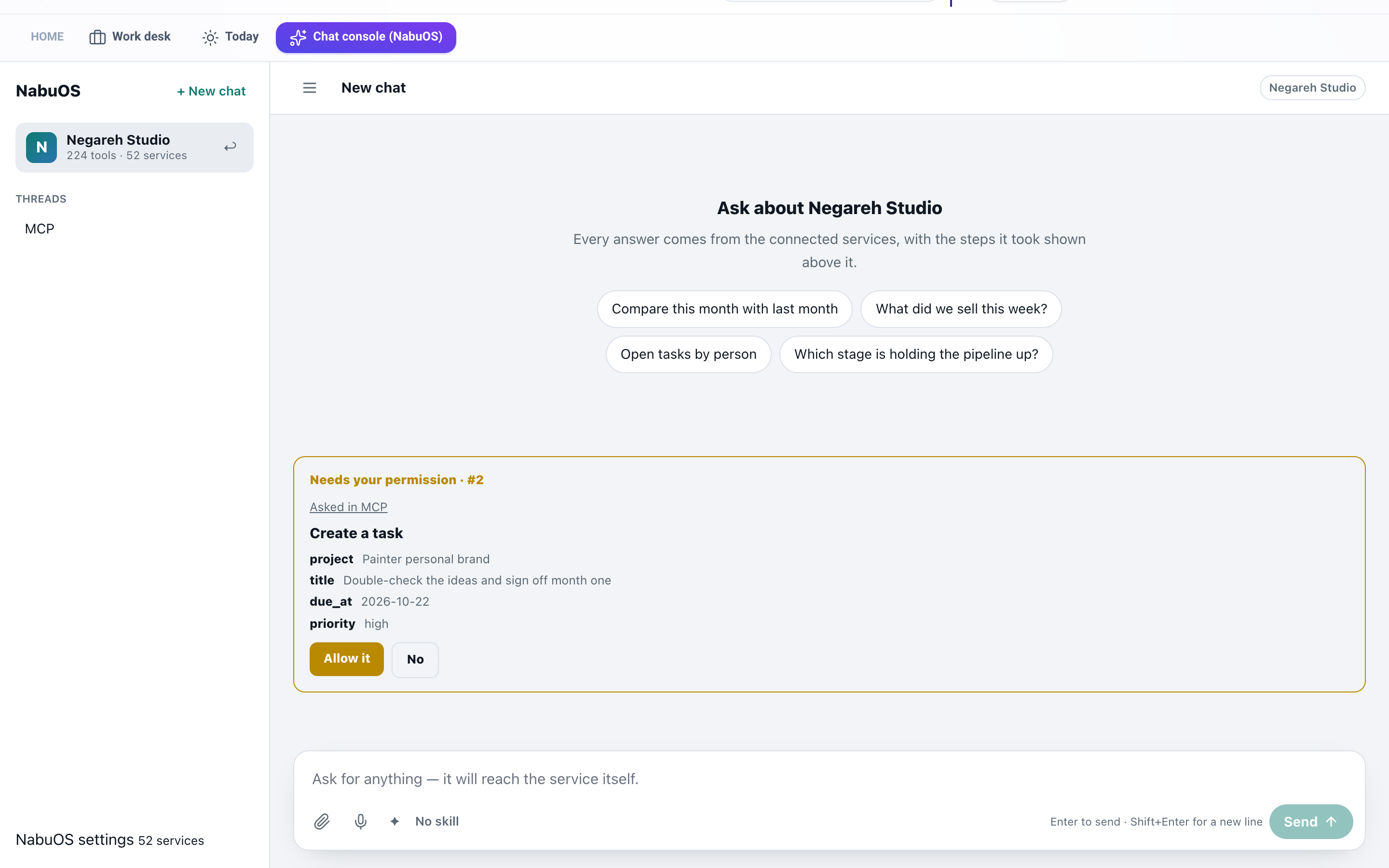
- The chat console shows every request waiting for you in the current business, whichever conversation it came from. Each card shows its number and an "Asked in MCP" link.
- The link ChatGPT or Claude gives next to "Waiting for approval" opens the right business and the card itself.
- After Allow it or No, the page opens the conversation the request came from, where the result is written.
- The Telegram bot now reads these as approvals too: "/approve_29 approved", "/approve_۲۹" and "/approve 29". Before, they reached the AI, which answered by searching your tasks.
- When a request is too long to show whole in Telegram, the bot sends the link to its card instead of only "approve it on the console page".
- The AI can no longer approve its own request or switch approval off, in ChatGPT and Claude, on the chat console, or in Telegram. Approval is yours unless you allowed otherwise when connecting.
How to use it
- When ChatGPT or Claude says "Waiting for approval #N", open the link next to it. Or press Chat console (NabuOS) in the top bar.
- Find the "Needs your permission · #N" card. Everything that will be done is written on it.
- Press Allow it or No. The result is written in the "MCP" conversation.
- In Telegram you can also send /approve_N or /deny_N to the bot.
If you want ChatGPT's own confirmation to be enough
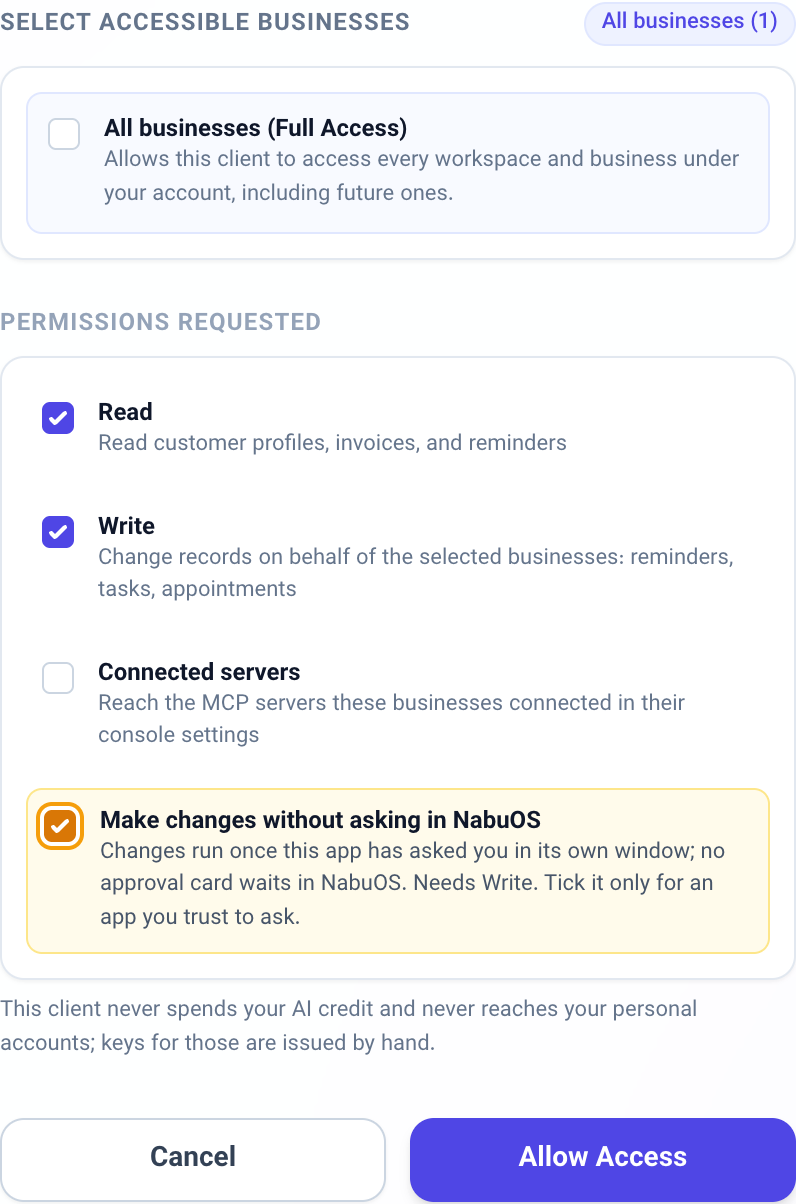
- In ChatGPT or Claude, reconnect NabuOS so the permission screen opens.
- Under Permissions requested, tick Write and Make changes without asking in NabuOS, then press Allow Access.
- From then on ChatGPT asks you in its own window before each change, and no card waits in NabuOS.
Good to know
- A request waits for 30 minutes. After that, ask ChatGPT again.
- Each person sees only their own requests, and only for the business that is open.
- A request too long for a Telegram message is approved on the page, where you can read all of it. You can still decline it from Telegram.
- The no-asking option is off by default, and ChatGPT or Claude cannot turn it on for themselves. Connections that have it carry the same label under Business settings → AI connections, where Revoke disconnects them.
- Spending AI credit and reaching personal accounts are still not granted from this screen.