Give a task an exact time and be reminded on time
A task's due date can now carry an hour. When that hour comes, everybody on the task is notified.
Product update 1 min read
What changed
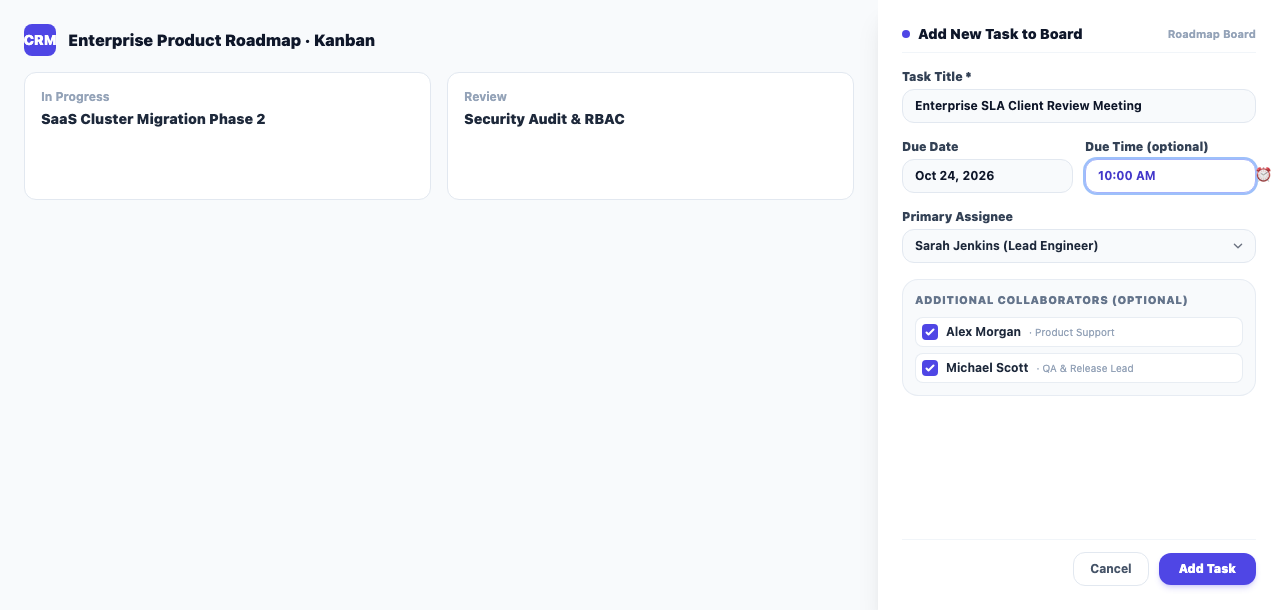
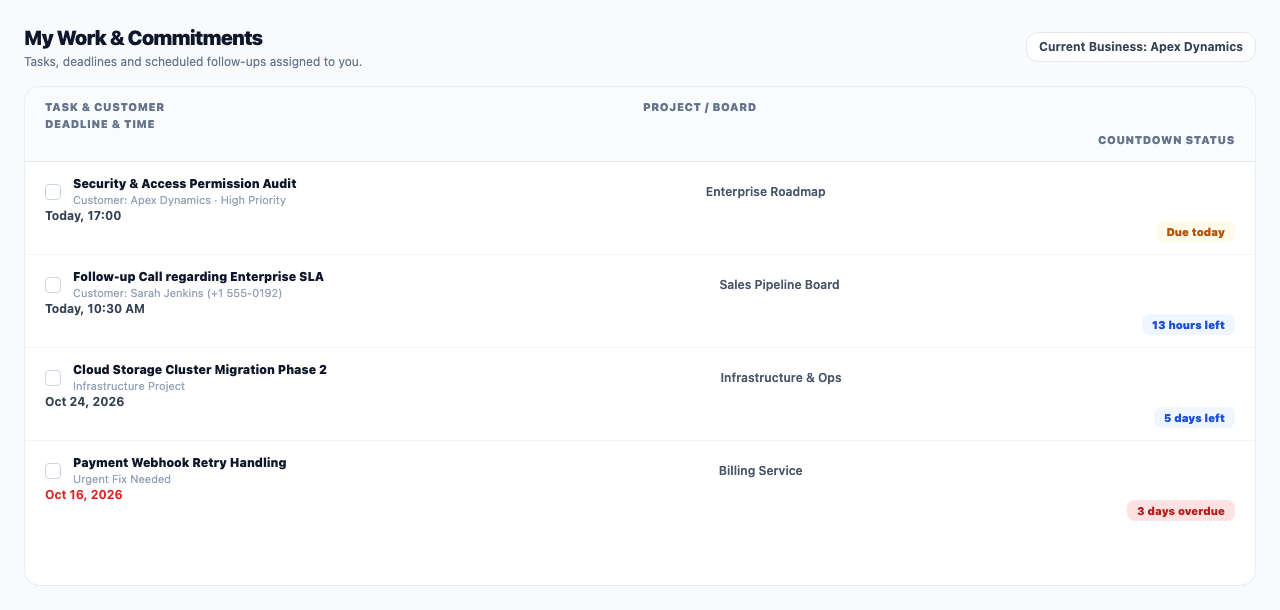
Some work is owed at an hour, not just on a day: a call at 10:00, a meeting at 17:30. When you create or edit a task you can now fill in Time (optional). When that time comes, the person responsible and everybody else on the task get a "Task due now" notification. The time is shown beside the date on board cards, lists and My work.
How to use it
- On a project board, in Add a task, pick the due date.
- Enter the hour in Time (optional) and press Add task.
- For an existing task, open it, enter the time in its details and press Save.
- The task dialog on a customer file has the same time field.
Good to know
- The time is read on your business's clock.
- Leave the time empty and the task is for the whole day, as before, and is only mentioned in the morning digest.
- Each task is announced once. Change its date or time and the new moment is announced in its turn.
- Notifications reach people who have turned on panel notifications in their browser or on their phone.